Lesson 5 of 15 · ~22 min
Malware, Ransomware and Spyware
Families, delivery, and first-response instincts.
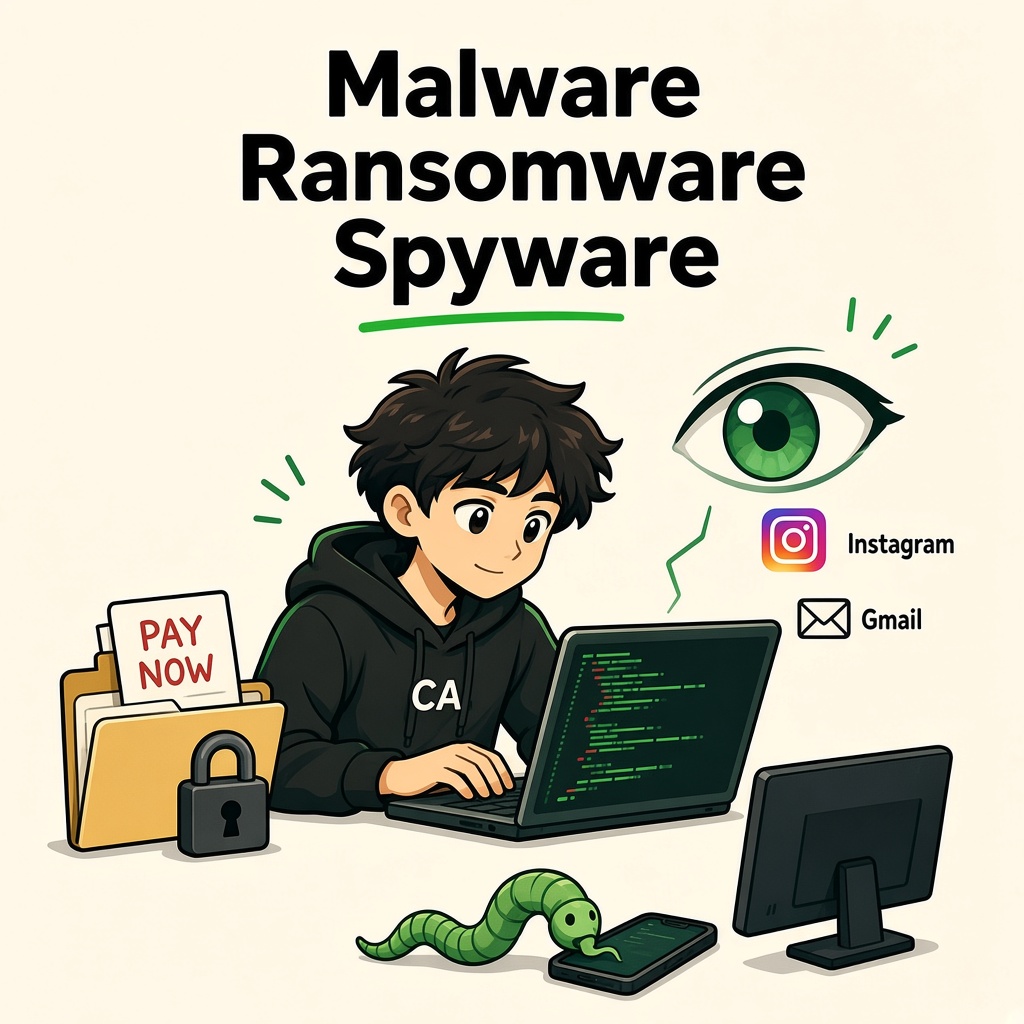
Malware, Ransomware and Spyware
Module 1 · Introduction to Cybersecurity · Beginner Level
Understand malicious software, how it reaches devices, what damage it can cause, and how to respond safely.
1. Let's Understand Malware
Imagine you download a free application on your laptop.
The application looks normal. It opens successfully and performs the function you expected.
But secretly, it also contains harmful code that attempts to access your personal information.
For example:
- It may collect your saved passwords.
- It may monitor your activities.
- It may damage your files.
- It may allow unauthorized access to your device.
You might not even realize that something is wrong.
This is where malware becomes dangerous.
Malware stands for Malicious Software.
It is a general term used for software or code designed to perform harmful or unauthorized activities on computers, mobile phones, servers or networks.
In simple words:
Malware is software that is created or used to harm devices, steal information, spy on users or disrupt normal operations.
2. How Does Malware Enter a Device?
Malware does not always enter a device through complicated hacking techniques.
Sometimes, users unknowingly install or execute something harmful.
Let's understand some common ways.
1. Fake Applications
Imagine you search online for a free premium version of an application.
You find a website offering a modified APK.
You download and install it.
The application may contain hidden malicious code.
Risk: Personal information, device security and account credentials may be compromised.
2. Suspicious Email Attachments
Imagine you receive an email:
"Your payment invoice is attached. Please open and verify."
The attachment looks like an invoice, but it contains a malicious executable file.
If you run it, malware may execute on your computer.
Risk: Your computer and stored information may become compromised.
3. Cracked or Pirated Software
Some websites offer free versions of paid software.
However, unauthorized installers may contain malware.
Risk: Your device may become infected without your knowledge.
4. Infected USB Drives
Imagine your friend gives you a USB drive containing some files.
The USB drive may contain malicious files or exploit vulnerabilities in a system.
Opening or executing unsafe content can put your computer at risk.
Risk: Malware infection or unauthorized access.
5. Malicious Websites and Downloads
Some untrusted websites may trick users into downloading harmful software.
In certain cases, vulnerable browsers or outdated plugins can also be exploited through malicious web content.
Risk: Malware infection or unwanted software installation.
Important: Simply visiting a website does not automatically mean your device will get infected. The risk depends on the website, browser, device security and vulnerabilities involved.
3. Different Types of Malware
Malware is not just one type of software.
There are different malware families, and each behaves differently.
Let's understand the most important ones.
1. Virus
A computer virus is malware that attaches itself to a legitimate file or program.
It can spread when an infected file or program is executed.
Example:
Imagine you download an infected document or executable file.
When you open or run it, the virus may execute and infect other files.
Possible impact:
- File corruption.
- Data loss.
- System instability.
- Further malware infection.
Remember: A traditional computer virus generally needs an infected file or program to be executed to spread.
2. Worm
A worm is malware that can spread from one computer to another without needing to attach itself to another file.
Some worms spread through vulnerable network services.
Example:
Imagine several computers in an organization are connected to the same network.
A vulnerable computer becomes infected by a worm.
The worm may automatically spread to other vulnerable systems.
Possible impact:
- Network congestion.
- Multiple infected computers.
- Service disruption.
- Rapid malware spread.
Remember: A worm can spread automatically between vulnerable systems.
3. Trojan Horse
A Trojan is malware that disguises itself as legitimate or useful software.
It tricks users into installing or executing it.
Example:
You download an application advertised as a free video editor.
It looks genuine, but secretly performs unauthorized activities.
Possible impact:
- Data theft.
- Unauthorized access.
- Additional malware installation.
- Device compromise.
Remember: A Trojan tricks users by pretending to be something trustworthy.
4. Ransomware
Ransomware is malware that prevents users from accessing their files or systems and demands money for restoring access.
A common technique is encrypting important files.
Example:
Imagine you are a student.
Your laptop contains:
- College assignments.
- Project reports.
- Important photographs.
- Examination preparation notes.
One day, you discover that your files are encrypted and cannot be opened.
A message appears demanding payment to recover your files.
This is a ransomware incident.
Possible impact:
- Loss of access to important files.
- Business interruption.
- Financial damage.
- Data exposure in some attacks.
Remember: Ransomware = Files or systems become inaccessible and attackers demand payment.
5. Spyware
Spyware is software designed to secretly monitor activities or collect information from a device.
Depending on its capabilities, it may collect:
- Browsing information.
- Personal information.
- Login credentials.
- Device activity.
- Other sensitive data.
Example:
Imagine you install an unsafe application on your phone.
It secretly collects information about your activities without your knowledge.
This is an example of spyware behavior.
Possible impact:
- Privacy violations.
- Credential theft.
- Personal data exposure.
- Financial fraud.
Remember: Spyware = Secret monitoring and information collection.
6. Keylogger
A keylogger is a tool that records keystrokes.
Malicious keyloggers may be used to capture information typed by a user.
For example:
- Usernames.
- Passwords.
- Messages.
- Other sensitive information.
Example:
Imagine someone installs a malicious keylogger on a computer.
When you type your login credentials, the software records the keystrokes.
Possible impact: Password theft and unauthorized account access.
Remember: Keylogger = Records what you type.
7. Adware
Adware is software that displays advertisements.
Not all adware is malicious, but unwanted or malicious adware can display intrusive advertisements, redirect browsers or track user activity without appropriate consent.
Example:
You install a free application.
After installation, your browser starts displaying unwanted advertisements and opening suspicious pages.
Possible impact:
- Unwanted advertisements.
- Browser redirects.
- Privacy concerns.
- Exposure to malicious websites.
4. Malware Types – Quick Comparison
| Malware Type | Main Behavior | Simple Example |
|---|---|---|
| Virus | Attaches to files or programs | Infected executable |
| Worm | Spreads between vulnerable systems | Network worm |
| Trojan | Pretends to be legitimate software | Fake application |
| Ransomware | Locks or encrypts files | Files become inaccessible |
| Spyware | Secretly collects information | Monitoring user activity |
| Keylogger | Records keystrokes | Capturing typed passwords |
| Adware | Displays unwanted advertisements | Browser advertisement pop-ups |
Important: These categories can overlap. For example, a Trojan can install spyware or ransomware. Malware does not always belong to only one category.
5. Understand Ransomware in More Detail
Let's understand how a typical ransomware incident can affect an organization.
Imagine a small company has 20 employees.
All employees depend on computers to access business documents.
One day, a computer becomes infected with ransomware.
A simplified incident may look like this:
Step 1 – Initial Infection
An employee unknowingly executes a malicious attachment.
Step 2 – Malware Execution
The malicious program starts running on the affected computer.
Step 3 – Unauthorized Activity
Depending on the malware, it may attempt to access files or other systems.
Step 4 – File Encryption
Ransomware encrypts accessible files.
Step 5 – Ransom Demand
A message appears demanding money in exchange for a possible recovery key.
Step 6 – Business Impact
Employees cannot access important documents.
Business operations may stop.
Step 7 – Incident Response
The security team isolates affected systems, investigates the incident and begins recovery using clean backups where possible.
This is why organizations need security monitoring, endpoint protection and reliable backup strategies.
6. What Is the Difference Between Ransomware and Spyware?
Beginners often confuse these two terms.
Let's make the difference clear.
| Ransomware | Spyware |
|---|---|
| Prevents access to files or systems | Secretly monitors activities |
| Commonly demands ransom | May secretly collect information |
| Can disrupt business operations | Can compromise personal privacy |
| Often affects Availability | Often affects Confidentiality |
| Backups help recovery | Detection and account protection help reduce damage |
Simple Example
Imagine two different situations.
Situation A:
Your laptop files become encrypted and a payment demand appears.
This is Ransomware.
Situation B:
Your laptop secretly collects your browsing information and login credentials.
This is Spyware.
Main difference:
Ransomware primarily tries to deny access or demand payment, while spyware focuses on secretly collecting information.
7. How Does Malware Affect the CIA Triad?
Remember our previous lesson about Confidentiality, Integrity and Availability.
Different malware families can affect different security principles.
| CIA Principle | Malware Impact | Example |
|---|---|---|
| Confidentiality | Information becomes exposed | Spyware steals passwords |
| Integrity | Information gets modified or damaged | Malware corrupts important files |
| Availability | Information becomes inaccessible | Ransomware encrypts files |
One malware infection can affect all three principles.
For example, ransomware may:
- Expose stolen information (Confidentiality).
- Modify or encrypt files (Integrity).
- Prevent access to files (Availability).
This is why malware protection is an important part of cybersecurity.
8. How Can You Identify Possible Malware Infection?
Sometimes malware infections are difficult to identify.
However, there are warning signs you should understand.
Common signs include:
1. Unexpected Slow Performance
Your computer suddenly becomes unusually slow.
2. Unknown Applications
You notice applications that you do not remember installing.
3. Suspicious Pop-ups
Your browser displays unusual advertisements or redirects.
4. Unusual Account Activity
You receive unexpected login alerts or password reset notifications.
5. Unknown Browser Extensions
New extensions appear without your knowledge.
6. Unexpected File Changes
Files disappear, become corrupted or cannot be opened.
7. Security Alerts
Your antivirus or endpoint security software reports suspicious activity.
Important: These signs do not always prove malware infection. Hardware issues, software bugs and normal system problems can produce similar symptoms. Proper investigation is necessary.
9. What Should You Do If Your Device Gets Infected?
This is one of the most important things to learn.
Imagine you suspect that your laptop has ransomware or spyware.
Do not panic. Follow a safe response process.
Step 1 – Disconnect From the Network
If you suspect an active malware infection, disconnect the affected device from Wi-Fi and wired networks.
This can help reduce further communication or spread.
If it is a company device, follow your organization's incident-response procedure.
Step 2 – Do Not Connect Your Backup Drives
Avoid connecting external hard drives or USB backup devices to a potentially infected computer.
This helps protect your backup files from possible damage or encryption.
Step 3 – Do Not Delete Everything Immediately
Do not randomly delete suspicious files, install unknown cleaning applications or attempt unverified fixes.
Important evidence may be lost.
Step 4 – Inform the Appropriate Person
For a personal device, contact a trusted cybersecurity professional or qualified technical support.
For a company device, immediately inform the IT or security team.
Step 5 – Protect Your Other Accounts
Using a separate, trusted device:
- Change passwords for important accounts if compromise is suspected.
- Enable MFA.
- Review active sessions.
- Contact your bank if financial information may have been exposed.
- Watch for suspicious transactions.
Step 6 – Scan and Recover Safely
A qualified person should investigate the device using trusted security software and appropriate procedures.
Recover files from clean backups only after ensuring the affected system is safe.
Step 7 – Learn From the Incident
Identify how the infection happened and improve security practices to prevent similar incidents.
Important: Never pay a ransom without professional and organizational guidance. Payment does not guarantee that files will be recovered or stolen information will be deleted.
10. Security Tools Used to Detect Malware
Cybersecurity professionals use different tools to investigate suspicious files, detect malware and monitor systems.
1. Microsoft Defender
Microsoft Defender provides built-in security protection on supported Windows devices.
It can help:
- Detect malicious files.
- Monitor suspicious activities.
- Scan applications and files.
- Provide security alerts.
2. VirusTotal
VirusTotal is an online service used to analyze suspicious files, URLs, domains and other indicators using multiple security engines and sources.
Security professionals use it for preliminary threat investigation.
Important: Do not upload confidential company files or personal documents to public analysis services without authorization. Uploaded samples may be shared with security partners or researchers.
3. Wireshark
Wireshark is a network protocol analyzer.
It helps security professionals:
- Inspect network packets.
- Understand communication between devices.
- Investigate unusual network activity.
- Analyze traffic in controlled environments.
4. EDR – Endpoint Detection and Response
EDR is a security technology used to monitor and investigate suspicious activities on computers and other endpoints.
It helps organizations:
- Detect suspicious behavior.
- Investigate security incidents.
- Identify affected devices.
- Support incident response.
Examples of EDR products include Microsoft Defender for Endpoint, CrowdStrike Falcon and SentinelOne.
You will explore these tools in more detail in later lessons.
11. How to Prevent Malware Infections
Follow these security practices in your daily life.
- Download applications only from trusted sources.
- Avoid cracked software and suspicious modified APKs.
- Keep your operating system and applications updated.
- Enable built-in security protection.
- Do not open unexpected email attachments.
- Avoid unknown USB drives.
- Review browser extensions regularly.
- Maintain separate and reliable backups.
- Use strong, unique passwords and MFA.
- Avoid disabling antivirus protection without a legitimate reason.
The 3-2-1 Backup Rule
One important backup strategy is called the 3-2-1 rule.
It means:
- 3 copies: Keep three copies of important data, including the original.
- 2 media types: Store backups on two different types of storage.
- 1 offsite copy: Keep at least one backup in a separate location.
For important systems, maintain offline or otherwise isolated backups and regularly test whether you can restore them.
This is especially useful when recovering from ransomware.
Lesson Summary
By completing this lesson, you should understand:
- What malware means.
- How malware enters computers and mobile devices.
- The difference between viruses, worms and Trojans.
- How ransomware affects files and organizations.
- How spyware and keyloggers collect information.
- What adware is.
- How malware affects the CIA Triad.
- Common signs of possible malware infection.
- How cybersecurity teams respond to malware incidents.
- Basic malware prevention and backup practices.
- The purpose of VirusTotal, Wireshark and EDR.
Key takeaway:
Not all malware behaves the same way. Some malware steals information, some spreads between computers, some secretly monitors users, and some prevents access to important files.
Understanding these differences is the first step toward detecting, preventing and responding to malware attacks.
Coming Next: Phishing and Social Engineering
You now understand how malicious software can compromise devices. In the next lesson, you will learn how attackers manipulate people through fake emails, messages, websites and phone calls to steal information or gain unauthorized access.
CYNARKS Academy – Learn to Understand. Practice to Defend.
Never download or execute real malware for experimentation. Study malware behavior only through approved, isolated and controlled educational labs. Perform security testing only with proper authorization.
End of lesson
Quiz · Tasks · Labs
Pass the quiz (≥70%), check off tasks, then mark the lesson complete to earn Foundations badges.
Scenario check
Real situations — apply the lesson logic; avoid pure memorization.
Answer all, then submit1. What does Malware mean?
2. Which malware commonly encrypts files and demands payment?
3. Which malware is designed to secretly monitor user activities?
4. Which malware can spread automatically between vulnerable computers?
5. An application pretends to be a genuine video editor but secretly performs harmful activities. What is this?
6. What is the main purpose of a keylogger?
7. You suspect ransomware has infected your computer. What is an appropriate first response?
8. What does the 3-2-1 backup rule recommend?
Lesson tasks
Practice labs
Required labs test this lesson’s skills. Related labs are optional previews.
- RequiredHex DecodeFundamentals
- RequiredYARA PurposeMalware
Finish the quiz and tasks to unlock Mark as completed.