Lesson 18 of 32 · ~22 min
HTTP, HTTPS, DNS and DHCP
Web transport and host configuration.
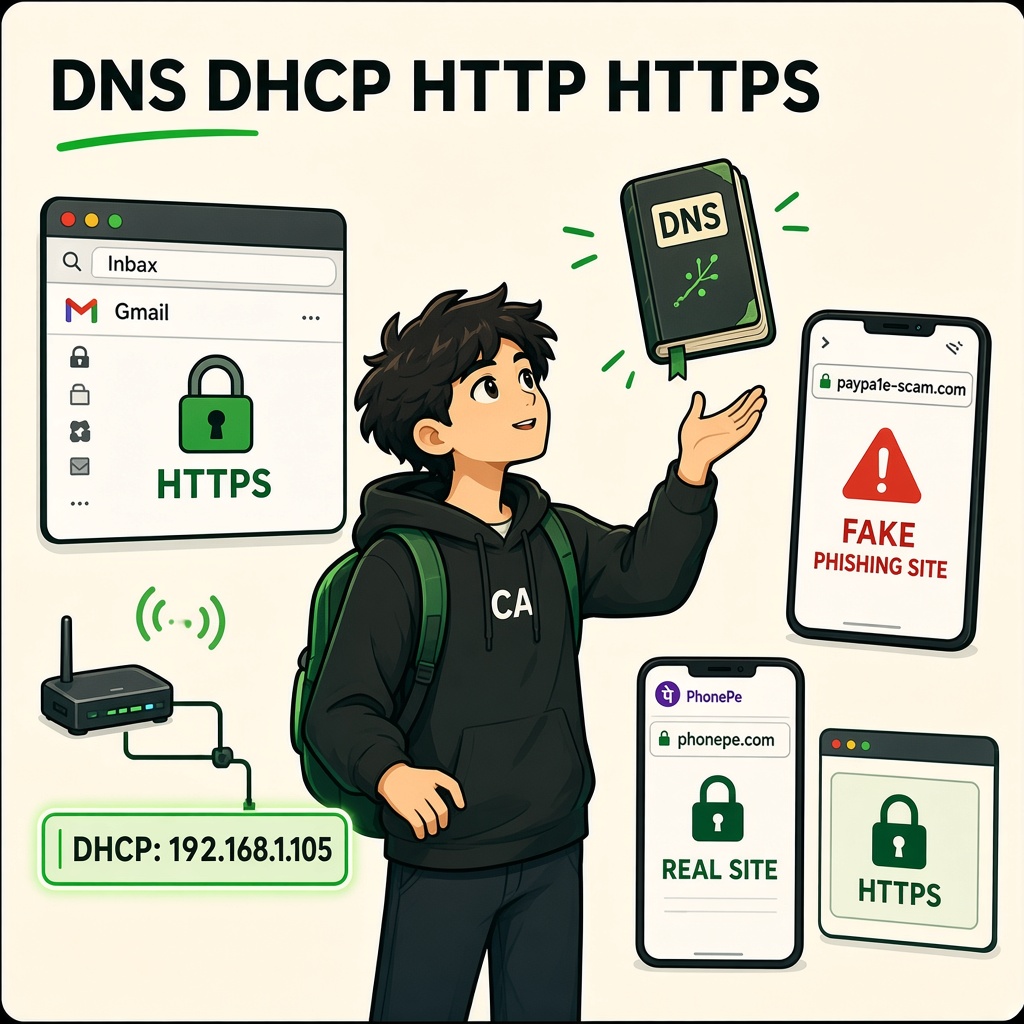
DNS, DHCP, HTTP and HTTPS
Course: Network Security
Level: Beginner
Topic: Name Resolution, Automatic IP Configuration and Secure Web Communication
1. Introduction
Every time you connect your phone to Wi-Fi or open a website, several networking protocols work in the background.
For example:
- You connect to hostel Wi-Fi.
- Your phone automatically receives an IP address.
- You type
instagram.cominto your browser. - Your device finds the server's IP address.
- Your browser establishes a connection.
- The website loads securely using HTTPS.
Four important protocols make these operations possible:
| Protocol | Full form | Main purpose |
|---|---|---|
| DNS | Domain Name System | Converts domain names into IP addresses |
| DHCP | Dynamic Host Configuration Protocol | Automatically provides network configuration |
| HTTP | Hypertext Transfer Protocol | Transfers web content and requests |
| HTTPS | Hypertext Transfer Protocol Secure | Protects HTTP communication using TLS |
In simple words:
- DNS = Internet phonebook.
- DHCP = Automatically assigns network settings.
- HTTP = Language used for web communication.
- HTTPS = HTTP communication protected using TLS.
2. What Is DNS?
DNS stands for Domain Name System.
Computers communicate using IP addresses, but people prefer remembering names.
For example:
google.cominstagram.comyoutube.comcynarks.com
Instead of remembering the IP address of every website, we use domain names.
DNS helps translate a domain name into the corresponding IP address.
Simple example
Imagine you want to call a friend.
You remember their name but not their phone number.
You open your phone contacts, search for their name, and find their number.
DNS works similarly.
| Phone system | DNS system |
|---|---|
| Contact name | Domain name |
| Phone number | IP address |
| Contact lookup | DNS query |
| Phone contact service | DNS resolver |
How DNS works
Imagine you type:
www.example.com
Your device needs to find the IP address associated with that domain.
A simplified DNS resolution process:
- Your browser or operating system checks available DNS caches.
- If a usable answer is not available, the device sends a query to its configured DNS resolver.
- The resolver may contact other DNS servers to find the answer.
- The resolver returns the IP address.
- Your device can use that address to connect to the destination.
Important DNS components
1. DNS Resolver
Receives DNS queries from devices and finds the requested DNS information.
2. Root DNS Server
Helps direct queries towards the correct top-level domain infrastructure.
3. TLD DNS Server
Handles top-level domains such as .com, .org, and .in.
4. Authoritative DNS Server
Provides the official DNS records for a domain.
DNS record types
| Record | Purpose | Example use |
|---|---|---|
| A | Maps a name to an IPv4 address | Website IPv4 address |
| AAAA | Maps a name to an IPv6 address | Website IPv6 address |
| CNAME | Creates an alias for another domain name | www alias |
| MX | Identifies mail servers | Business email |
| TXT | Stores text information | Domain verification, SPF |
| NS | Identifies authoritative name servers | DNS delegation |
| PTR | Supports reverse DNS lookup | IP address to name |
Remember: DNS does not only resolve website names. It also supports email routing, domain verification, and other internet services.
3. What Is DHCP?
DHCP stands for Dynamic Host Configuration Protocol.
It automatically provides network configuration to devices when they connect to a network.
Imagine joining your college Wi-Fi.
Your laptop needs network settings such as:
- IP address.
- Subnet mask or prefix.
- Default gateway.
- DNS server.
Instead of manually entering these settings, DHCP can provide them automatically.
How DHCP works – DORA Process
DHCP commonly uses a four-step process called DORA.
D – Discover
The device broadcasts a DHCP Discover message to find available DHCP servers.
O – Offer
A DHCP server offers network configuration, including an available IP address.
R – Request
The device requests the offered configuration.
A – Acknowledgment
The server acknowledges the request and confirms the lease.
DORA Example
Imagine your laptop connects to a network.
| Step | Message | What happens |
|---|---|---|
| 1 | Discover | Laptop searches for DHCP server |
| 2 | Offer | Server offers 192.168.1.20 |
| 3 | Request | Laptop requests that address |
| 4 | Acknowledgment | Server confirms the configuration |
The device can now use the assigned network configuration.
What is a DHCP Lease?
A DHCP lease is the period during which a DHCP server allows a client to use an assigned IP address.
The client may renew the lease before it expires.
Security importance:
- Rogue DHCP servers may provide incorrect network settings.
- Incorrect gateway information can redirect traffic.
- Incorrect DNS settings can send users to malicious destinations.
- DHCP snooping on supported switches can help prevent unauthorized DHCP server responses.
4. What Is HTTP?
HTTP stands for Hypertext Transfer Protocol.
It is an application-layer protocol used for communication between clients and web servers.
A client could be:
- Chrome browser.
- Firefox browser.
- Mobile application.
- Another system requesting web resources.
A server receives the request and returns a response.
Simple HTTP example
You open:
http://example.com
Your browser sends an HTTP request.
The server processes the request and returns an HTTP response.
HTTP request structure
A simplified HTTP request contains:
- Request method.
- Request path.
- HTTP version.
- Headers.
- Optional body.
Example:
GET /index.html HTTP/1.1
Host: example.com
This means the client is requesting /index.html from example.com.
Common HTTP methods
| Method | Purpose | Example |
|---|---|---|
| GET | Retrieve information | Open a webpage |
| POST | Submit information | Submit a login form |
| PUT | Create or replace a resource | Update a record |
| PATCH | Partially update a resource | Change a profile field |
| DELETE | Delete a resource | Remove an item |
These methods describe intended operations. The server determines which operations are actually allowed.
Common HTTP status codes
| Code | Meaning | Example |
|---|---|---|
| 200 | OK | Request successful |
| 201 | Created | Resource created |
| 301 | Moved Permanently | Permanent redirect |
| 302 | Found | Temporary redirect |
| 400 | Bad Request | Invalid request |
| 401 | Unauthorized | Authentication required or failed |
| 403 | Forbidden | Access denied |
| 404 | Not Found | Resource not found |
| 500 | Internal Server Error | Server-side error |
| 503 | Service Unavailable | Server temporarily unavailable |
Remember: HTTP status codes help developers and security analysts understand how a web request was handled.
5. What Is HTTPS?
HTTPS stands for Hypertext Transfer Protocol Secure.
It is HTTP communication protected using TLS (Transport Layer Security).
HTTPS provides important security properties:
- Confidentiality: Protects data from being read by unauthorized parties during transmission.
- Integrity: Helps detect unauthorized modification of protected data in transit.
- Authentication: Helps the browser verify the identity of the server through its digital certificate.
HTTP vs HTTPS
| Feature | HTTP | HTTPS |
|---|---|---|
| Communication | Not protected by TLS | Protected by TLS |
| Encryption in transit | No TLS protection | Yes |
| Data integrity protection | No TLS protection | Yes |
| Server authentication through TLS certificate | No | Yes |
| Common port | 80 | 443 |
What happens when you open an HTTPS website?
- You enter an HTTPS website address.
- Your browser obtains the destination IP address, usually through DNS.
- The browser establishes a transport connection where applicable.
- The browser and server perform a TLS handshake.
- The server presents its certificate.
- The browser checks the certificate and negotiates secure session keys.
- HTTP requests and responses travel inside the protected connection.
For HTTP/1.1 and HTTP/2, HTTPS commonly uses TCP with TLS. HTTP/3 uses QUIC over UDP and includes TLS 1.3 security.
What is an SSL/TLS Certificate?
A digital certificate helps establish the identity of a website.
It commonly contains:
- Domain identity.
- Public key.
- Certificate issuer.
- Validity period.
- Digital signature from the issuing authority.
A browser checks whether the certificate is trusted and valid for the requested domain.
Does the HTTPS padlock mean a website is completely safe?
No.
HTTPS does not guarantee:
- The company is genuine.
- The website is free from malware.
- The website will not steal information.
- The website's business practices are trustworthy.
- The application has no vulnerabilities.
A phishing website can also use a valid HTTPS certificate.
Important lesson: HTTPS protects communication with a website. It does not prove that the website itself is honest.
6. How DNS, DHCP, HTTP and HTTPS Work Together
Let's understand a real-world example.
You connect your laptop to hostel Wi-Fi and open:
https://www.example.com
Here is what happens.
Step 1: DHCP
Your laptop connects to the Wi-Fi network.
The DHCP server provides:
- IP address.
- Subnet mask.
- Default gateway.
- DNS server.
Step 2: DNS
Your browser needs the IP address for www.example.com.
The device uses DNS to resolve the domain name.
Step 3: Connection establishment
Your browser connects to the destination server.
The connection uses the transport protocol required by the selected HTTP version.
Step 4: TLS
For HTTPS, the browser and server establish a protected connection using TLS.
Step 5: HTTP request
Your browser sends an HTTP request inside the secure connection.
Step 6: Server response
The server returns the requested content.
Step 7: Browser rendering
Your browser processes the response and displays the webpage.
Complete flow:
DHCP → DNS → Connection → TLS (for HTTPS) → HTTP Request → HTTP Response → Webpage
This is a simplified sequence. DNS can be cached, and modern protocols may combine or change some connection steps.
7. Why Attackers Target DNS and DHCP
DNS and DHCP are important because they influence where devices send network traffic.
If an attacker can manipulate these services, users may be directed towards incorrect destinations or malicious infrastructure.
1. DNS Spoofing
DNS spoofing involves providing false DNS information so that a domain name resolves to an incorrect address.
Example:
You enter:
www.example.com
But manipulated DNS information directs your device to an attacker's server.
2. DNS Cache Poisoning
DNS cache poisoning involves inserting incorrect DNS information into a resolver's cache.
If successful, users relying on that cache may receive incorrect DNS answers.
3. DNS Hijacking
DNS hijacking occurs when an attacker takes control of or manipulates DNS settings or infrastructure to redirect users.
Possible targets include:
- Router DNS configuration.
- Domain registrar accounts.
- DNS provider accounts.
- Compromised devices.
4. Rogue DHCP Server
A rogue DHCP server is an unauthorized server that provides network configuration to devices.
It may provide:
- Incorrect default gateway.
- Malicious DNS server.
- Unapproved network settings.
This can redirect or interfere with network communication.
5. Fake Wi-Fi Portals
Attackers may create fake Wi-Fi networks or captive portals that imitate legitimate login pages.
For example:
A fake hostel Wi-Fi portal may ask students to enter their email password.
Security lesson: Never enter sensitive credentials into an unexpected Wi-Fi login page. Confirm the official network name and portal with the network administrator.
8. Common Web Security Risks
HTTP Traffic Exposure
Without TLS protection, sensitive information transmitted over HTTP can potentially be observed or modified by someone who can intercept the traffic.
Phishing Websites
Attackers create websites that imitate genuine services.
Examples may imitate:
- Gmail.
- PhonePe.
- Paytm.
- Google Pay.
- Instagram.
- Banking websites.
Certificate Errors
A browser may display a certificate warning because:
- The certificate has expired.
- The certificate does not match the domain.
- The certificate chain is not trusted.
- The system date or time is incorrect.
Do not ignore certificate warnings when entering sensitive information.
DNS Misconfiguration
Incorrect DNS records may cause:
- Websites to become unavailable.
- Email delivery problems.
- Traffic to reach incorrect destinations.
- Domain verification failures.
Insecure HTTP Redirects
A website that does not correctly enforce HTTPS may allow users to start on an unprotected HTTP page.
Security controls such as HTTPS redirects and HTTP Strict Transport Security (HSTS) help reduce this risk.
9. Real-World Case Studies
Case Study 1: Dyn DNS DDoS Attack (2016)
Dyn was a major DNS service provider.
In October 2016, a large distributed denial-of-service (DDoS) attack affected Dyn's DNS infrastructure.
As a result, users experienced problems accessing several popular internet services.
What happened?
- Attack traffic overwhelmed DNS infrastructure.
- DNS resolution was disrupted.
- Some users could not reach websites even though their own internet connections were working.
What should security teams learn?
- DNS is critical infrastructure.
- DNS availability directly affects access to online services.
- Organizations need resilient DNS architecture.
- DDoS protection and incident response planning are essential.
Key lesson: When DNS fails, services may appear unavailable even when their application servers are still operating.
Case Study 2: Sea Turtle DNS Hijacking Campaigns
Security researchers reported campaigns associated with DNS hijacking and manipulation of domain infrastructure.
Attackers targeted DNS-related systems and credentials to redirect users towards attacker-controlled destinations.
What should security teams learn?
- Protect domain registrar accounts.
- Use multi-factor authentication.
- Secure DNS provider credentials.
- Monitor DNS record changes.
- Review certificate and domain configuration.
- Investigate unexpected DNS responses.
Key lesson: A wrong DNS answer can take a user to the wrong destination, even when the user enters the correct domain name.
Case Study 3: HTTPS Adoption and Let's Encrypt
Let's Encrypt helped make HTTPS certificates widely accessible through automated certificate issuance.
This contributed to broader adoption of encrypted web communication.
What should security teams learn?
- HTTPS should be enabled across websites.
- Certificates must be renewed before expiry.
- Secure configurations matter.
- HTTP should redirect to HTTPS where appropriate.
- Users should understand that HTTPS does not guarantee a website is trustworthy.
Key lesson: Encryption in transit is a basic requirement for modern websites, especially login pages, payment systems, and business applications.
10. Security Best Practices
For Students and Individual Users
- Use official apps and verified websites.
- Check the domain name before entering credentials.
- Prefer HTTPS websites.
- Avoid unexpected Wi-Fi login pages.
- Do not ignore certificate warnings.
- Avoid installing unknown certificate profiles.
- Use trusted DNS settings.
- Enable MFA on important accounts.
- Keep browsers and operating systems updated.
For Organizations
- Use secure and redundant DNS infrastructure.
- Protect domain registrar and DNS provider accounts with MFA.
- Monitor DNS record changes.
- Use DHCP snooping where supported and appropriate.
- Restrict unauthorized DHCP servers.
- Enforce HTTPS and maintain valid TLS certificates.
- Use HSTS where appropriate.
- Monitor unusual DNS queries.
- Segment guest and corporate networks.
- Maintain incident response procedures.
11. Tools You Will Meet
1. nslookup
Used to investigate DNS resolution.
Example:
nslookup example.com
It can display the DNS server used and the returned records.
2. ipconfig
Used on Windows to inspect network configuration.
ipconfig
To display detailed configuration:
ipconfig /all
3. ipconfig /flushdns
Clears the Windows DNS resolver cache.
ipconfig /flushdns
This can help when investigating stale local DNS cache entries.
4. curl
Used to send HTTP requests and inspect server responses.
Example:
curl -I https://example.com
This requests response headers and can help inspect HTTP status and server behavior.
5. Wireshark
Wireshark is a network protocol analyzer.
It can help you inspect:
- DNS queries.
- DNS responses.
- DHCP communication.
- TCP connection establishment.
- HTTP traffic.
- TLS handshake information.
Use it only on your own device or authorized lab traffic.
12. Practical Lab 1: DNS Lookup
Objective: Understand how a domain name resolves to an IP address.
Open Command Prompt or Terminal.
Run:
nslookup example.com
Observe:
- DNS server used.
- Domain name queried.
- Returned IP address.
- Whether the lookup succeeded.
Try another domain:
nslookup google.com
Your task: Compare the returned DNS results.
Remember that a domain may return multiple IP addresses, and answers can change based on location, load balancing, and DNS configuration.
13. Practical Lab 2: Understand DHCP Configuration
Objective: Inspect the network configuration assigned to your device.
On Windows:
ipconfig /all
Find:
- DHCP Enabled.
- IPv4 Address.
- Subnet Mask.
- Default Gateway.
- DHCP Server.
- DNS Servers.
- Lease Obtained.
- Lease Expires.
Answer these questions:
- Is DHCP enabled?
- Which device or server assigned your IP address?
- Which DNS server is configured?
- What is your default gateway?
- When does your current DHCP lease expire?
Do not publish your private network configuration unnecessarily.
14. Practical Lab 3: Inspect HTTP and HTTPS
Objective: Understand the difference between HTTP and HTTPS responses.
Run:
curl -I http://example.com
Then run:
curl -I https://example.com
Observe:
- HTTP status code.
- Response headers.
- Whether the HTTP address redirects to HTTPS.
- Whether the HTTPS request completes successfully.
Note: A website's exact redirect and response behavior can change. Your results may differ.
Your task
Write down:
- What response did HTTP return?
- Did it redirect to HTTPS?
- What response did HTTPS return?
- What does the HTTPS connection protect?
15. Practical Lab 4: Observe DNS and DHCP in Wireshark
Objective: Understand how network configuration and name resolution appear in packet captures.
Use your own computer and authorized lab traffic.
In Wireshark, you can use these display filters:
DNS:
dns
DHCP:
dhcp
For some Wireshark versions or packet captures, DHCPv4 can also be identified with:
bootp
TCP:
tcp
TLS:
tls
Observe:
- DNS query and response.
- DHCP Discover and Offer, if you perform a fresh DHCP exchange in your lab.
- DHCP Request and Acknowledgment.
- TCP connection establishment.
- TLS handshake metadata.
Important: HTTPS encrypts application data, so packet captures generally do not reveal the protected webpage content. Some metadata may still be visible.
16. Knowledge Check
Q1. What is the main purpose of DNS?
A. Assign IP addresses
B. Translate domain names into IP addresses
C. Encrypt files
D. Block malware
Q2. What is the correct DHCP DORA sequence?
A. Discover, Offer, Request, Acknowledgment
B. Download, Open, Read, Access
C. Domain, Output, Route, Address
D. Discover, Open, Resolve, Access
Q3. Which protocol is used for ordinary unencrypted web communication?
A. HTTPS
B. SSH
C. HTTP
D. DHCP
Q4. What does HTTPS use to protect web communication?
A. DHCP
B. TLS
C. FTP
D. ARP
Q5. Does the HTTPS padlock guarantee that a website is genuine and trustworthy?
A. Yes
B. No
Q6. What can a rogue DHCP server do?
A. Provide incorrect network configuration
B. Increase screen resolution
C. Repair a broken keyboard
D. Automatically remove malware
Q7. What was the main effect of the Dyn DNS attack in 2016?
A. DNS availability disruption
B. Laptop battery damage
C. Password encryption
D. Physical server theft
Answer Key
- B
- A
- C
- B
- B
- A
- A
17. Practical Challenge: Fake Wi-Fi Portal Investigation
Scenario
You are connected to a Wi-Fi network named College_Guest_WiFi.
A login page appears and asks for:
- Email address.
- Email password.
- Phone number.
- OTP.
You are not sure whether the page is genuine.
Your task
Identify the possible security risks.
- Why might an unexpected portal request an email password?
- How can you verify that the Wi-Fi network is official?
- Why should you avoid sharing an OTP?
- What could happen if a rogue DHCP server provides a malicious DNS server?
- Does an HTTPS padlock prove that the login page is legitimate?
- What should you do before entering any sensitive information?
Expected security decision: Do not enter sensitive credentials or OTPs into an unexpected portal. Confirm the network and login process through the official college IT team.
18. Lesson Summary
After completing this lesson, you should understand:
- What DNS is and how domain resolution works.
- Common DNS record types.
- How DNS resolvers find domain information.
- What DHCP is.
- How the DORA process works.
- What a DHCP lease means.
- How HTTP requests and responses work.
- The difference between HTTP and HTTPS.
- How TLS protects web communication.
- Why HTTPS does not guarantee that a website is trustworthy.
- How DNS spoofing, DNS hijacking, and rogue DHCP servers can affect users.
- How to use nslookup, ipconfig, curl, and Wireshark for basic investigation.
Remember: DNS helps you find the destination, DHCP helps configure your device, HTTP carries web communication, and HTTPS protects that communication using TLS.
Coming Next: MAC Addresses and ARP
In the next lesson, you will learn:
- What a MAC address is.
- How MAC addresses differ from IP addresses.
- How ARP maps IPv4 addresses to MAC addresses on a local network.
- How devices discover each other inside a LAN.
- What ARP spoofing and ARP poisoning mean.
- How attackers may misuse ARP.
- How network security teams detect and defend against ARP-based attacks.
End of lesson
Quiz · Tasks · Labs
Pass the quiz (≥70%), check off tasks, then mark the lesson complete to earn Foundations badges.
Scenario check
Real situations — apply the lesson logic; avoid pure memorization.
Answer all, then submit1. What is the main purpose of DNS?
2. What is the correct DHCP DORA sequence?
3. Which protocol is used for ordinary unencrypted web communication?
4. What does HTTPS use to protect web communication?
5. Does the HTTPS padlock guarantee that a website is genuine and trustworthy?
6. What can a rogue DHCP server do?
7. What was the main effect of the Dyn DNS attack in 2016?
Lesson tasks
Practice labs
Required labs test this lesson’s skills. Related labs are optional previews.
- RequiredDNS vs ARP & Secure ShellNetworking
- RequiredMail Server RecordNetworking
Finish the quiz and tasks to unlock Mark as completed.