Lesson 22 of 32 · ~22 min
IP Configuration and Troubleshooting
Layer-by-layer diagnosis.
Network Troubleshooting
Layer-by-Layer Diagnosis of IP, DNS, Routing, Connectivity, and Wi-Fi Issues
Course: Network Security
Level: Beginner
Module: Practical Network Administration
Estimated Duration: 100–120 minutes
1. Learning Objectives
By the end of this lesson, you will be able to:
- Explain the network troubleshooting process.
- Follow a systematic OSI and TCP/IP layer-by-layer approach.
- Identify common physical connectivity problems.
- Diagnose incorrect IP configuration.
- Troubleshoot subnet mask and default gateway issues.
- Identify DNS resolution failures.
- Investigate routing problems.
- Check whether network ports and services are reachable.
- Troubleshoot common Wi-Fi problems.
- Understand firewall-related connectivity failures.
- Use common Windows and Linux networking commands.
- Interpret basic command outputs.
- Document findings and prepare a troubleshooting report.
2. What Is Network Troubleshooting?
Network troubleshooting is the systematic process of identifying, analyzing, and resolving problems that affect network connectivity, performance, or communication.
Network problems can occur because of:
- Damaged cables.
- Incorrect IP configuration.
- DNS failures.
- Routing problems.
- Firewall restrictions.
- Incorrect VLAN configuration.
- Wi-Fi interference.
- Network congestion.
- Server failures.
- Authentication problems.
- Incorrect application configuration.
Real-world example
Imagine an employee reports:
"I can connect to Wi-Fi, but I cannot open the company's website."
A network administrator should not immediately restart every network device.
Instead, the administrator investigates:
- Is the device connected to Wi-Fi?
- Does it have a valid IP address?
- Can it reach the default gateway?
- Can it reach an external IP address?
- Can it resolve domain names?
- Can it reach the website's service port?
- Is a firewall blocking communication?
- Is the website server functioning?
This systematic approach helps identify the actual problem.
<AsyncImage query="network troubleshooting diagnostic workflow computer router gateway DNS server internet step by step diagram" aspectRatio="16:9" width="100%"/>3. The Network Troubleshooting Methodology
A structured troubleshooting process prevents unnecessary changes and reduces investigation time.
Step 1 – Identify the Problem
Understand what the user is experiencing.
Ask:
- What exactly is not working?
- When did the problem begin?
- Is it affecting one device or multiple devices?
- Is it affecting one application or all applications?
- Did anything change recently?
- Is the problem continuous or intermittent?
Step 2 – Gather Information
Collect relevant information:
- Device IP address.
- Subnet mask.
- Default gateway.
- DNS server.
- Network interface status.
- Connection type.
- Error messages.
- Relevant logs.
Step 3 – Identify the Scope
Determine whether the problem affects:
- One user.
- One device.
- One VLAN.
- One department.
- Multiple network segments.
- The entire organization.
This helps narrow down the affected network area.
Step 4 – Form a Hypothesis
Based on available evidence, identify possible causes.
Example:
If users can access websites using IP addresses but cannot access them using domain names, DNS resolution may be failing.
Step 5 – Test the Hypothesis
Use appropriate commands and monitoring tools.
Avoid changing multiple configurations simultaneously.
Step 6 – Implement a Solution
Apply the smallest appropriate change that addresses the confirmed issue.
Step 7 – Verify the Fix
Confirm that:
- Connectivity works.
- The application is accessible.
- The original issue is resolved.
- Other services have not been disrupted.
Step 8 – Document the Incident
Record:
- Problem description.
- Root cause.
- Commands used.
- Evidence collected.
- Corrective action.
- Verification results.
- Preventive recommendations.
4. Layer-by-Layer Troubleshooting
The OSI model provides a useful framework for diagnosing network problems.
A common troubleshooting approach begins at the physical layer and progresses upward.
<AsyncImage query="OSI seven layer model network troubleshooting physical data link network transport session presentation application labeled diagram" aspectRatio="16:9" width="100%"/>Layer 1 – Physical Layer
The physical layer deals with the actual transmission of signals through physical media.
Examples:
- Ethernet cables.
- Fiber-optic cables.
- Wireless radio signals.
- Network interface cards.
- Switch ports.
- Connectors.
Common Problems
- Damaged Ethernet cable.
- Loose cable connection.
- Faulty switch port.
- Wi-Fi signal too weak.
- Network interface disabled.
- Incorrect fiber connection.
- Power failure.
Troubleshooting
Check:
- Is the cable connected?
- Are link lights active?
- Is the network adapter enabled?
- Is the Wi-Fi signal strong enough?
- Is the switch powered on?
- Is the correct physical port being used?
Windows
Get-NetAdapter
This displays network adapters and their status.
Linux
ip link show
This displays network interfaces and their link state information.
Example
If an Ethernet adapter shows disconnected status, check the cable, switch port, and network interface before investigating DNS or routing.
Layer 2 – Data Link Layer
The Data Link Layer handles local network communication.
Important concepts include:
- MAC addresses.
- Ethernet frames.
- VLANs.
- Switching.
- ARP for IPv4 address resolution.
- Wireless link-layer communication.
Common Problems
- Incorrect VLAN assignment.
- Switch port disabled.
- MAC address table problems.
- ARP resolution failure.
- Port security violation.
- Incorrect trunk configuration.
Troubleshooting
Windows:
arp -a
Linux:
ip neigh
Inspect switch configuration and logs when authorized.
Example
An employee device is connected to the correct physical switch but assigned to the wrong VLAN.
The device may receive an incorrect network configuration or be unable to reach the intended services.
Layer 3 – Network Layer
The Network Layer handles logical addressing and routing.
Important concepts:
- IPv4.
- IPv6.
- Subnetting.
- Default gateways.
- Routing tables.
- Routers.
- ICMP.
Common Problems
- Incorrect IP address.
- Incorrect subnet mask.
- Incorrect default gateway.
- Duplicate IP address.
- Missing route.
- Incorrect routing policy.
Troubleshooting
Windows:
ipconfig /all
Linux:
ip addr
ip route
Test local gateway reachability:
ping 192.168.1.1
Replace the example address with your actual gateway.
Layer 4 – Transport Layer
The Transport Layer supports communication between applications using TCP and UDP.
Important concepts:
- TCP.
- UDP.
- Ports.
- Connection states.
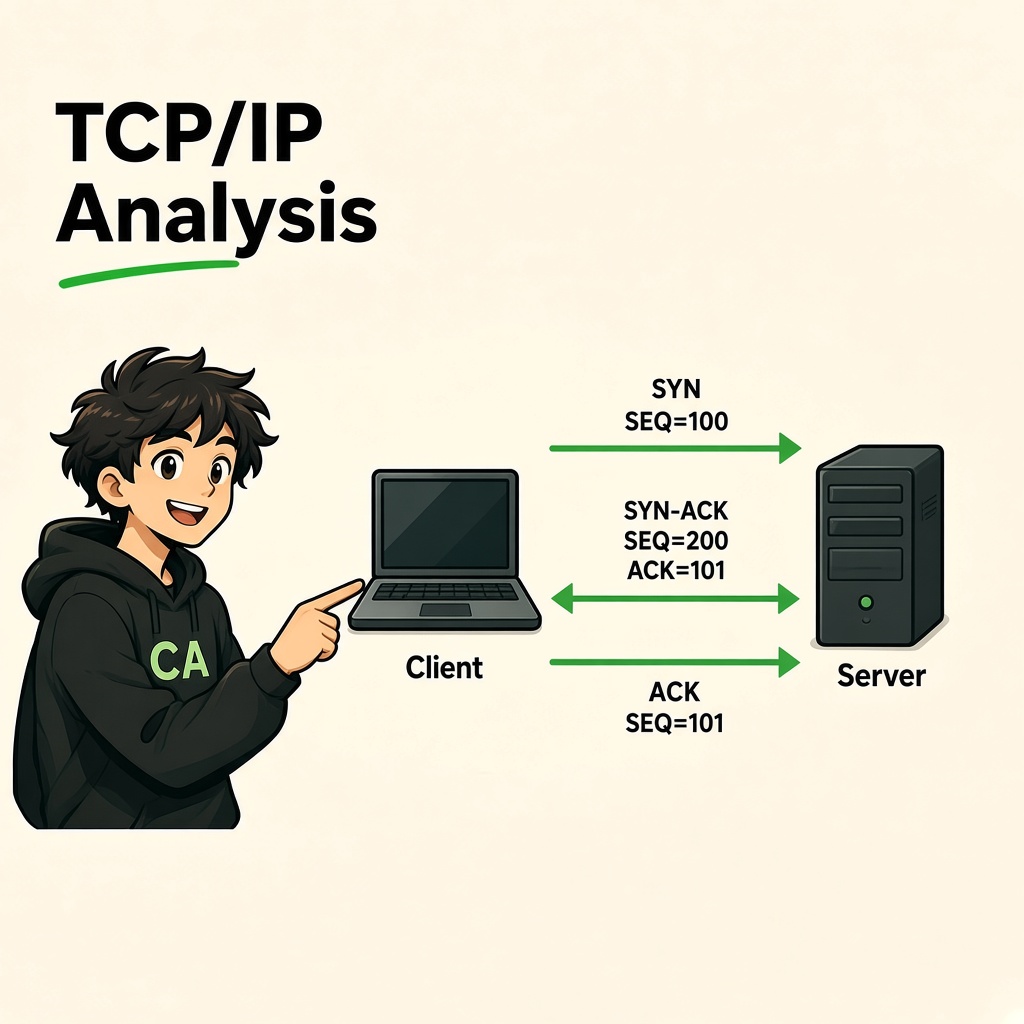
- TCP handshake.
Common Problems
- Application port not listening.
- Firewall blocking a port.
- Service not running.
- TCP connection timeout.
- Connection reset.
- UDP communication blocked or misconfigured.
Troubleshooting
Windows:
Get-NetTCPConnection
Linux:
ss -tulpen
Check an authorized TCP service:
Test-NetConnection example.com -Port 443
The test checks TCP connectivity to the specified destination and port. It does not prove that the application itself is functioning correctly.
Layers 5–7 – Session, Presentation, and Application
These layers help describe higher-level communication and application behavior.
Common Problems
- Application authentication failure.
- Incorrect session handling.
- TLS certificate errors.
- Unsupported encryption configuration.
- Application server failure.
- Incorrect HTTP configuration.
- Application timeout.
- Database connectivity issues.
Troubleshooting
Check:
- Application logs.
- Authentication logs.
- Server health.
- TLS certificate validity.
- Application configuration.
- Backend dependencies.
- Database connectivity.
Important: The OSI model is a conceptual troubleshooting framework. Real applications and protocols do not always map neatly to only one layer.
5. IP Configuration Problems
Incorrect IP configuration is one of the most common causes of network connectivity problems.
5.1 Understanding IP Configuration
A device commonly needs:
- IP address.
- Subnet mask or prefix length.
- Default gateway.
- DNS server.
Example:
| Parameter | Example |
|---|---|
| IP Address | 192.168.1.25 |
| Subnet Mask | 255.255.255.0 |
| Prefix | /24 |
| Default Gateway | 192.168.1.1 |
| DNS Server | 192.168.1.1 |
These are example values for a private IPv4 network.
5.2 Incorrect IP Address
A device may have:
- An address outside the intended subnet.
- An incorrectly configured static address.
- An address assigned by an unexpected DHCP server.
- A duplicate IP address.
Symptoms
- Unable to communicate with local devices.
- Intermittent connectivity.
- Duplicate IP warnings.
- Cannot reach the default gateway.
Diagnosis
Windows:
ipconfig /all
Linux:
ip addr show
Compare the configuration with the expected network design.
5.3 APIPA Address
APIPA stands for Automatic Private IP Addressing.
On many Windows systems, an address in the range:
169.254.0.0/16
may be automatically assigned when a usable DHCP configuration cannot be obtained.
Example:
169.254.20.15
This often indicates that the device did not successfully receive its expected DHCP configuration.
Possible Causes
- DHCP server unavailable.
- DHCP relay failure.
- Network cable problem.
- Incorrect VLAN.
- DHCP scope exhaustion.
- DHCP requests blocked.
Important: A 169.254.x.x address is not automatically proof of an attack. It is often a symptom of DHCP or connectivity failure.
5.4 Incorrect Subnet Mask
A subnet mask determines which IP addresses are considered part of the local network.
Example:
IP address:
192.168.1.25
Expected subnet:
192.168.1.0/24
If the subnet mask is incorrectly configured, the device may make incorrect local-versus-remote network decisions.
Possible Symptoms
- Local communication failure.
- Incorrect gateway usage.
- Devices in the same intended subnet cannot communicate normally.
- Unexpected routing behavior.
5.5 Incorrect Default Gateway
The default gateway is used when a destination is outside the local subnet and no more specific route is available.
If the gateway is incorrect:
- Internal local communication may still work.
- External communication may fail.
- Remote networks may become unreachable.
Check Gateway
Windows:
ipconfig
Linux:
ip route
Look for the default route.
Example:
default via 192.168.1.1 dev eth0
5.6 Duplicate IP Address
A duplicate IP occurs when two devices use the same IP address on a network where that address should be unique.
Possible symptoms:
- Intermittent connectivity.
- ARP mapping changes.
- Duplicate address warnings.
- Connections reaching the wrong device.
Prevention
- Use DHCP reservations where appropriate.
- Maintain IP address management records.
- Avoid manually assigning addresses inside DHCP-managed ranges without coordination.
- Monitor duplicate-address alerts.
6. DHCP Troubleshooting
DHCP automatically provides network configuration to devices.
A DHCP failure can prevent a client from receiving a valid IP configuration.
Common Causes
- DHCP server unavailable.
- DHCP pool exhausted.
- Rogue DHCP server.
- Incorrect VLAN.
- DHCP relay failure.
- Firewall blocking DHCP communication.
Windows Commands
View configuration:
ipconfig /all
Release an address:
ipconfig /release
Request a new DHCP lease:
ipconfig /renew
Clear the local DNS cache:
ipconfig /flushdns
Note: These commands affect network configuration or cached data. Use them only when appropriate and when you understand the impact on the device.
Linux Commands
View IP configuration:
ip addr
Inspect DHCP-related logs:
journalctl -u NetworkManager
The actual service and log location depend on the Linux distribution and network manager.
DHCP Troubleshooting Checklist
- Is the network interface connected?
- Is the client on the correct VLAN?
- Is the DHCP server reachable?
- Is the DHCP scope available?
- Is the correct DHCP relay configured?
- Is DHCP traffic being blocked?
- Did the client receive the expected gateway and DNS configuration?
7. DNS Resolution Failures
DNS translates domain names into IP addresses.
Example:
www.example.com
may resolve to an IPv4 or IPv6 address.
7.1 Common DNS Problems
- Incorrect DNS server.
- DNS server unavailable.
- Incorrect DNS records.
- DNS cache issues.
- Firewall blocking DNS.
- DNS forwarding problems.
- Incorrect search domain configuration.
- DNSSEC validation failures.
7.2 Common Symptoms
- Websites do not open using domain names.
- Applications cannot locate internal servers.
- Email services cannot locate mail servers.
- Domain names resolve inconsistently.
- Internal applications work by IP but not by hostname.
7.3 Test DNS Resolution
Windows:
nslookup example.com
Linux:
dig example.com
Alternative:
getent hosts example.com
Understand nslookup Output
A typical output may show:
Server: 192.168.1.1
Address: 192.168.1.1

Name: example.com
Address: <resolved-address>
This tells you which DNS server responded and what address was returned.
The example does not guarantee that the returned address is reachable or that the website is functioning.
7.4 Compare DNS with IP Connectivity
A useful troubleshooting sequence:
- Check local IP configuration.
- Test the default gateway.
- Test an approved external IP destination.
- Resolve a known domain name.
- Compare results.
- Inspect the configured DNS server.
- Review DNS logs if available.
Example Diagnosis
| Test | Result | Possible Meaning |
|---|---|---|
| Gateway ping | Success | Local gateway is reachable |
| Approved external IP test | Success | Some external IP connectivity exists |
| DNS lookup | Failure | Possible DNS issue |
| Website by hostname | Failure | Could be DNS or application related |
A successful ping to an IP address does not prove that a specific web service is available.
7.5 Useful DNS Commands
Windows:
ipconfig /displaydns
Displays cached DNS entries.
ipconfig /flushdns
Clears the local DNS resolver cache.
Linux:
resolvectl status
Displays resolver configuration on systems using systemd-resolved.
resolvectl query example.com
Performs a DNS query through the configured resolver.
8. Routing Problems
Routing determines how packets move between different IP networks.
A routing problem may prevent communication with remote networks even when local connectivity is working.
8.1 Common Routing Problems
- Missing default route.
- Incorrect static route.
- Incorrect subnet configuration.
- Routing loop.
- Incorrect next-hop address.
- Firewall blocking forwarded traffic.
- Asymmetric routing.
- VLAN or Layer 3 interface misconfiguration.
8.2 Check Routing Tables
Windows:
route print
Linux:
ip route
macOS:
netstat -rn
Example Linux Route
default via 192.168.1.1 dev eth0
192.168.1.0/24 dev eth0 proto kernel scope link
Interpretation:
- The default route uses gateway 192.168.1.1.
- The local network is 192.168.1.0/24.
- The local network is directly connected through eth0.
8.3 Traceroute and Tracert
These tools help identify the network path toward a destination.
Windows:
tracert example.com
Linux:
traceroute example.com
macOS:
traceroute example.com
How They Work
Traceroute-style tools use packets with varying TTL or Hop Limit values.
When a packet's TTL expires at a router, the router may return an ICMP Time Exceeded message.
This helps identify intermediate network hops.
Understanding Results
A typical output may contain:
- Hop number.
- Router address.
- Response time.
- Timeout indicators.
A timeout does not automatically mean that a router is down. Some routers do not respond to traceroute probes or apply rate limits.
8.4 Routing Troubleshooting Process
- Confirm local IP configuration.
- Check the default gateway.
- Test gateway reachability.
- Inspect the local routing table.
- Trace the path toward the destination.
- Review router and firewall logs.
- Confirm the destination network is reachable.
- Verify return routing.
9. Port and Service Connectivity Issues
A device may have working network connectivity while a particular application service remains unreachable.
Example:
An employee can access the internet but cannot connect to the company's application server on TCP port 443.
Possible causes:
- Server is offline.
- Application is not listening.
- Firewall blocks the connection.
- Incorrect destination port.
- Routing issue.
- Load balancer problem.
- TLS or application configuration error.
9.1 Check Listening Ports
Windows:
Get-NetTCPConnection -State Listen
Linux:
ss -tulpen
These commands help identify locally listening services.
9.2 Test TCP Connectivity
Windows:
Test-NetConnection example.com -Port 443
Linux, when Netcat is installed:
nc -vz example.com 443
These commands attempt a TCP connection to the specified destination and port.
Understand the Result
Connection successful
The TCP connection was established.
This does not prove that the application is healthy or correctly configured.
Connection refused
The destination or an intermediate device actively rejected the connection.
A common cause is that no service is listening on the target port.
Connection timed out
The connection attempt did not receive a response within the expected period.
Possible causes include:
- Firewall filtering.
- Routing problems.
- Packet loss.
- Unreachable destination.
- Service or infrastructure failure.
9.3 Port Troubleshooting Checklist
- Is the destination IP correct?
- Is the server reachable?
- Is the service running?
- Is the service listening on the correct interface?
- Is the expected port configured?
- Are firewall rules allowing the connection?
- Is the return path valid?
- Is TLS or application authentication failing after TCP connects?
10. Wi-Fi Troubleshooting
Wi-Fi allows devices to connect through wireless communication.
However, wireless connectivity can be affected by signal strength, interference, authentication, configuration, and access point problems.
<AsyncImage query="WiFi troubleshooting wireless router laptop signal strength interference channels access point diagram" aspectRatio="16:9" width="100%"/>10.1 Common Wi-Fi Problems
Weak signal
The device is too far from the access point or physical obstacles reduce signal strength.
Interference
Other wireless devices or neighboring networks affect communication quality.
Incorrect password
The user cannot authenticate to the wireless network.
DHCP failure
The device connects to Wi-Fi but does not receive the expected IP configuration.
Access point overload
Too many devices or excessive traffic affects performance.
Incorrect wireless configuration
Examples include incompatible security modes, channel settings, or authentication configurations.
Roaming problems
A device has difficulty moving between access points.
10.2 Wi-Fi Troubleshooting Steps
- Confirm Wi-Fi is enabled.
- Check whether the correct SSID is selected.
- Verify authentication.
- Check signal strength.
- Confirm the device received a valid IP address.
- Test gateway reachability.
- Test DNS resolution.
- Check access point status.
- Review wireless channel utilization.
- Inspect access point logs.
10.3 Windows Wi-Fi Commands
Show available wireless networks:
netsh wlan show networks
Show wireless interface details:
netsh wlan show interfaces
Generate a WLAN report:
netsh wlan show wlanreport
The report can help investigate recent wireless connection events.
10.4 Linux Wi-Fi Commands
Show wireless interfaces:
iw dev
Show wireless link details:
iw dev wlan0 link
The interface may have a different name on your system.
Show network connections:
nmcli device status
10.5 Wi-Fi Security Checks
- Use WPA2-AES or WPA3 where supported.
- Avoid obsolete WEP and weak legacy configurations.
- Use strong Wi-Fi credentials.
- Disable unnecessary WPS functionality.
- Isolate guest Wi-Fi.
- Update access point firmware.
- Monitor unauthorized access points.
- Restrict administrative access.
11. Firewall Troubleshooting
A firewall controls network communication according to security policies.
A firewall may intentionally block a connection that a user expects to work.
However, incorrect firewall rules can also cause connectivity problems.
11.1 Common Firewall Problems
- Incorrect source address.
- Incorrect destination address.
- Wrong destination port.
- Missing allow rule.
- Incorrect rule order.
- Wrong network zone.
- NAT configuration issue.
- Stateful inspection problem.
- Asymmetric routing.
- Application control policy.
- Host-based firewall restriction.
11.2 Example
An employee needs to access an internal application.
Expected communication:
- Source: Employee VLAN.
- Destination: Application server.
- Protocol: TCP.
- Destination port: 443.
If the firewall denies this connection, the user may see a timeout or connection failure.
11.3 Firewall Troubleshooting Steps
- Identify source IP.
- Identify destination IP.
- Identify protocol.
- Identify destination port.
- Check the route.
- Review firewall rules.
- Inspect allow and deny logs.
- Confirm NAT behavior where applicable.
- Check the return path.
- Validate the application after connectivity is restored.
Windows Firewall
Display firewall profiles:
Get-NetFirewallProfile
List firewall rules:
Get-NetFirewallRule
Inspect a rule:
Get-NetFirewallRule -DisplayName "Example Rule"
The rule name must match an existing local rule.
Linux Firewall
For systems using UFW:
sudo ufw status verbose
For systems using firewalld:
sudo firewall-cmd --list-all
For systems using nftables:
sudo nft list ruleset
The commands available depend on the Linux distribution and firewall configuration.
Important: Do not disable the firewall as a routine troubleshooting shortcut. Identify the specific rule and make the smallest authorized change necessary.
12. Common Windows Networking Commands
The following commands are useful for basic Windows network troubleshooting.
| Command | Purpose |
|---|---|
ipconfig | Display IP configuration |
ipconfig /all | Display detailed network configuration |
ipconfig /release | Release DHCP IPv4 configuration |
ipconfig /renew | Request DHCP configuration |
ipconfig /flushdns | Clear DNS cache |
ping | Test IP reachability |
tracert | Trace network path |
nslookup | Query DNS |
arp -a | Display ARP cache |
route print | Display routing table |
netstat -ano | Display network connections and process IDs |
Get-NetAdapter | Display network adapters |
Get-NetTCPConnection | Display TCP connections |
Test-NetConnection | Test network connectivity |
netsh wlan show interfaces | Display Wi-Fi interface details |
Example Commands
Check connectivity to gateway:
ping 192.168.1.1
Check DNS resolution:
nslookup example.com
Inspect route:
route print
Check HTTPS port:
Test-NetConnection example.com -Port 443
13. Common Linux Networking Commands
Linux administrators commonly use these commands to inspect network configuration and connectivity.
| Command | Purpose |
|---|---|
ip addr | Display IP addresses |
ip link | Display network interfaces |
ip route | Display routing table |
ping | Test IP reachability |
traceroute | Trace network path |
tracepath | Discover network path and MTU information |
dig | Query DNS |
nslookup | Query DNS |
ss -tulpen | Inspect listening sockets |
ss -ant | Inspect TCP connections |
ip neigh | Display neighbor table |
resolvectl status | Display DNS resolver status |
nmcli | Manage NetworkManager connections |
curl | Test application-layer communication |
ethtool | Inspect Ethernet interface information |
Example Commands
Display IP configuration:
ip addr
Display routes:
ip route
Test gateway reachability:
ping -c 4 192.168.1.1
Check DNS:
dig example.com
Check HTTPS response:
curl -I https://example.com
Check listening services:
ss -tulpen
Note: Some commands require additional packages or administrative permissions. Their output can differ between Linux distributions.
14. Understanding Common Troubleshooting Results
14.1 Ping Successful
A successful ping indicates that the destination responded to the ICMP Echo Request.
It does not prove that:
- Every application is working.
- TCP port 443 is open.
- DNS is configured correctly.
- The server is healthy.
14.2 Ping Failed
Possible reasons:
- Destination is unreachable.
- ICMP is blocked.
- Firewall restrictions.
- Routing problems.
- Network interface failure.
- Device is offline.
Some systems intentionally do not respond to ICMP requests.
14.3 DNS Lookup Failed
Possible reasons:
- DNS server unavailable.
- Incorrect resolver configuration.
- DNS firewall restriction.
- Missing or incorrect DNS record.
- DNS forwarding issue.
14.4 Connection Refused
Common reasons:
- No service listening on the target port.
- Service actively rejecting connections.
- Firewall sending a rejection response.
- Incorrect application configuration.
14.5 Connection Timed Out
Possible reasons:
- Traffic silently dropped.
- Destination unavailable.
- Routing failure.
- Packet loss.
- Firewall filtering.
- Service not responding.
14.6 Slow Network
Possible reasons:
- Bandwidth congestion.
- High latency.
- Packet loss.
- Wireless interference.
- Server performance issues.
- DNS delays.
- Network device overload.
15. A Practical Layer-by-Layer Troubleshooting Decision Process
Use this sequence when an employee reports that an application is unreachable.
Step 1 – Physical and Link Connectivity
- Is the cable connected?
- Is Wi-Fi associated?
- Is the network interface enabled?
- Is the switch port operational?
Step 2 – IP Configuration
- Is there a valid IP?
- Is the subnet correct?
- Is the gateway correct?
- Is DHCP functioning?
Step 3 – Local Network Connectivity
- Can the device reach the gateway?
- Is ARP resolution working?
- Is the device assigned to the correct VLAN?
Step 4 – External Connectivity
- Can the device reach an approved external IP?
- Is the routing path correct?
- Is the default route present?
Step 5 – DNS
- Can the configured DNS server be reached?
- Does the domain resolve correctly?
- Are the DNS records expected?
Step 6 – Port Connectivity
- Is the destination service listening?
- Can the TCP connection be established?
- Are firewall rules permitting communication?
Step 7 – Application
- Is the application server running?
- Is TLS working?
- Are authentication and authorization successful?
- Are backend services healthy?
Step 8 – Verify and Document
- Confirm service recovery.
- Record the root cause.
- Document the fix.
- Identify preventive actions.
16. Practical Lab 1: Diagnose IP Configuration
Objective: Identify IP configuration problems on your own computer.
Windows
ipconfig /all
Linux
ip addr
ip route
Record the Following
| Parameter | Your Observation |
|---|---|
| Network interface | |
| IP address | |
| Subnet mask/prefix | |
| Default gateway | |
| DNS server | |
| DHCP enabled | |
| Interface status |
Tasks
- Identify the active interface.
- Record the IPv4 address.
- Record the subnet mask or prefix.
- Identify the default gateway.
- Identify configured DNS servers.
- Check whether DHCP is enabled.
- Compare the configuration with your expected network settings.
Questions
- What happens if the IP address is incorrect?
- What happens if the default gateway is missing?
- What does an APIPA address suggest?
- How can a duplicate IP cause connectivity issues?
Expected outcome: Understand basic IP configuration and identify common mistakes.
17. Practical Lab 2: Diagnose Gateway and Internet Connectivity
Objective: Identify whether a connectivity problem exists locally or beyond the gateway.
Use your own authorized network.
Step 1 – Check Local Gateway
Windows:
ipconfig
Linux:
ip route
Step 2 – Test Gateway
ping 192.168.1.1
Replace the example address with your actual gateway.
Step 3 – Test an Approved External IP
Use a known, approved destination:
ping 1.1.1.1
Some networks block ICMP, so a failed ping is not conclusive evidence of an internet outage.
Step 4 – Test a Domain Name
nslookup example.com
Step 5 – Test an Application Port
Windows:
Test-NetConnection example.com -Port 443
Linux:
nc -vz example.com 443
Record Your Results
| Test | Result | Interpretation |
|---|---|---|
| Interface status | ||
| Gateway reachability | ||
| External IP test | ||
| DNS resolution | ||
| TCP 443 connectivity |
Expected outcome: Understand how to separate local, routing, DNS, and application connectivity issues.
18. Practical Lab 3: DNS Troubleshooting
Objective: Investigate a domain-name resolution problem.
Windows
nslookup example.com
ipconfig /displaydns
Linux
dig example.com
resolvectl status
Tasks
- Identify the configured DNS server.
- Resolve a known domain.
- Record the response.
- Inspect whether the lookup succeeded.
- Check for DNS errors.
- Compare resolver configuration with the expected network configuration.
- Document possible causes if resolution fails.
Questions
- What is the difference between a DNS query and response?
- Why can a website fail when IP connectivity works?
- What is a DNS cache?
- When might flushing a DNS cache help?
Expected outcome: Diagnose basic DNS configuration and resolution problems.
19. Practical Lab 4: Routing Troubleshooting
Objective: Inspect routing information on an authorized device.
Windows
route print
Linux
ip route
Trace a Network Path
Windows:
tracert example.com
Linux:
traceroute example.com
Tasks
- Identify the default route.
- Identify the next-hop gateway.
- Record connected networks.
- Trace a route to an approved destination.
- Identify visible intermediate hops.
- Explain any unexpected behavior.
- Record where additional investigation is required.
Expected outcome: Understand default routes, next hops, and basic path diagnosis.
20. Practical Lab 5: Port and Service Troubleshooting
Objective: Investigate a service connectivity problem.
Use your own local development service or an authorized lab server.
Step 1 – Inspect Local Listening Ports
Windows:
Get-NetTCPConnection -State Listen
Linux:
ss -tulpen
Step 2 – Test the Authorized Service
Windows:
Test-NetConnection 192.168.1.20 -Port 443
Linux:
nc -vz 192.168.1.20 443
Replace the example address and port with your authorized lab service.
Step 3 – Inspect the Service
Check:
- Whether the service is running.
- Whether it is listening on the expected interface.
- Whether the firewall allows the connection.
- Whether the routing path is correct.
- Whether the application responds after connecting.
Expected Outcome
Understand the difference between:
- Network reachability.
- TCP port reachability.
- Application availability.
21. Practical Lab 6: Wi-Fi Troubleshooting
Objective: Diagnose a wireless connectivity issue.
Windows
netsh wlan show interfaces
Linux
nmcli device status
iw dev
Tasks
- Identify the wireless interface.
- Check connection status.
- Identify the connected SSID.
- Observe signal strength where available.
- Check IP configuration.
- Test gateway connectivity.
- Check DNS resolution.
- Review wireless logs if available.
Questions
- Can a device connect to Wi-Fi without receiving an IP address?
- How can interference affect performance?
- Why might a device connect to an access point but fail to access the internet?
- What is the purpose of guest Wi-Fi isolation?
Expected outcome: Understand wireless connection failures and their possible causes.
22. Practical Lab 7: Firewall Troubleshooting
Objective: Investigate a permitted or blocked connection.
Use a firewall you own or are authorized to administer.
Scenario
An internal application should be accessible through TCP port 443.
A user reports that the application is unreachable.
Tasks
- Identify the client IP.
- Identify the server IP.
- Identify the destination port.
- Check the routing path.
- Review firewall allow and deny logs.
- Verify that the service is listening.
- Identify whether the issue is caused by the firewall or another component.
- Recommend the smallest necessary configuration change.
- Verify connectivity after the authorized change.
Deliverable
Prepare a troubleshooting record:
| Field | Details |
|---|---|
| Source device | |
| Source IP | |
| Destination server | |
| Destination IP | |
| Protocol | |
| Destination port | |
| Observed behavior | |
| Root cause | |
| Corrective action | |
| Verification |
Expected outcome: Learn to investigate firewall-related problems without unnecessarily disabling security controls.
23. Practical Lab 8: Complete Network Troubleshooting Scenario
Objective: Solve a realistic enterprise network problem using a structured process.
Scenario
A company has three departments:
- HR.
- Finance.
- IT.
An employee in Finance reports:
"I can connect to the office network, but I cannot open the finance application."
Other employees report that the application is working.
Available Information
- Employee device has an IP address.
- Wi-Fi or Ethernet connection is active.
- Gateway is reachable.
- Other internet websites work.
- Finance application hostname does not resolve.
- Another Finance employee can access the application.
Your Tasks
- Identify the scope of the issue.
- Inspect the affected device's IP configuration.
- Check DNS settings.
- Test the application hostname.
- Compare DNS results with a working Finance device.
- Review DNS and DHCP configuration.
- Identify the likely root cause.
- Propose the smallest corrective action.
- Verify application access.
- Prepare a troubleshooting report.
Additional Scenarios
Scenario A – DHCP Failure
A laptop receives a 169.254.x.x address.
Identify possible causes and the investigation steps.
Scenario B – Incorrect Gateway
A workstation can communicate with local devices but cannot reach remote networks.
Identify what you should inspect.
Scenario C – Port Connectivity
An application server is reachable by IP, but its HTTPS service is unavailable.
Identify possible causes.
Scenario D – Wi-Fi Performance
A user experiences intermittent connectivity in a meeting room.
Identify possible wireless causes and measurements.
Scenario E – Firewall Restriction
A new application works for IT but not for employees.
Identify the network and firewall policies that require review.
Expected Deliverable
A troubleshooting report containing:
- Problem description.
- Affected systems.
- Investigation steps.
- Commands executed.
- Observed results.
- Root cause.
- Corrective action.
- Verification.
- Preventive recommendations.
24. Troubleshooting Best Practices
Follow these principles during real-world network administration.
Evidence First
- Collect information before making changes.
- Record command outputs.
- Review relevant logs.
- Identify the affected systems.
Change Carefully
- Make one controlled change at a time.
- Use approved change-management procedures.
- Keep a rollback plan.
- Avoid unnecessary service restarts.
Protect Security Controls
- Do not disable firewalls without authorization.
- Do not bypass network segmentation.
- Do not weaken authentication to solve connectivity problems.
- Do not expose internal services unnecessarily.
Document Everything
- Record the original problem.
- Record the root cause.
- Record the corrective action.
- Verify the result.
- Document preventive improvements.
25. Troubleshooting Command Quick Reference
Windows
| Command | Purpose |
|---|---|
ipconfig /all | Detailed IP configuration |
ipconfig /renew | Renew DHCP configuration |
ipconfig /flushdns | Clear DNS cache |
ping | Test ICMP reachability |
tracert | Trace network path |
nslookup | Query DNS |
arp -a | Inspect ARP cache |
route print | View routing table |
netstat -ano | View connections and process IDs |
Get-NetAdapter | Inspect network adapters |
Get-NetTCPConnection | Inspect TCP connections |
Test-NetConnection | Test TCP connectivity |
netsh wlan show interfaces | Inspect Wi-Fi status |
Linux
| Command | Purpose |
|---|---|
ip addr | Display IP addresses |
ip link | Display network interfaces |
ip route | Display routes |
ping | Test ICMP reachability |
traceroute | Trace network path |
tracepath | Inspect path and MTU |
dig | Query DNS |
resolvectl status | Inspect resolver configuration |
ss -tulpen | Inspect listening sockets |
ss -ant | Inspect TCP connections |
ip neigh | Inspect neighbor entries |
nmcli | Manage NetworkManager |
curl | Test application communication |
ethtool | Inspect Ethernet interfaces |
journalctl | Review system logs |
27. Lesson Summary
In this lesson, you learned:
- Network troubleshooting is a structured process.
- The OSI model helps organize investigations.
- Layer 1 problems involve physical connectivity.
- Layer 2 problems involve switching, VLANs, MAC addresses, and ARP.
- Layer 3 problems involve IP addressing and routing.
- Layer 4 problems involve TCP, UDP, and ports.
- Application-layer problems may involve DNS, TLS, authentication, or server configuration.
- Incorrect IP configuration can prevent network communication.
- APIPA addresses may indicate DHCP problems.
- DNS failures can prevent domain-name resolution.
- Routing problems can prevent remote network access.
- Port checks help distinguish network reachability from service availability.
- Wi-Fi issues may involve signal, interference, authentication, or configuration.
- Firewall logs help identify blocked connections.
- Windows and Linux provide useful network diagnostic commands.
- Evidence-based investigation helps identify root causes without weakening security.
28. Key Terms to Remember
| Term | Meaning |
|---|---|
| APIPA | Automatic Private IP Addressing |
| DHCP | Dynamic Host Configuration Protocol |
| DNS | Domain Name System |
| Gateway | Router used to reach other networks |
| Routing Table | Information used to forward packets |
| ICMP | Internet Control Message Protocol |
| TCP | Transmission Control Protocol |
| UDP | User Datagram Protocol |
| VLAN | Virtual Local Area Network |
| ARP | Address Resolution Protocol |
| MTU | Maximum Transmission Unit |
| Latency | Communication delay |
| Packet Loss | Packets that fail to reach their destination |
| Root Cause | Underlying reason for a problem |
29. Coming Next: Network Security Hardening
In the next lesson, you will learn how to strengthen routers, switches, servers, Wi-Fi, and network services.
Topics include:
- Router and switch hardening.
- Server hardening.
- Secure Wi-Fi configuration.
- Firewall rule reviews.
- Disabling unnecessary services.
- Patch management.
- Access restrictions.
- Configuration backups.
- Network device security.
- Practical hardening assessment.
CYNARKS Academy – Learn to Understand. Practice to Defend.
Practice networking and security testing only on systems you own or have explicit authorization to test.
End of lesson
Quiz · Tasks · Labs
Pass the quiz (≥70%), check off tasks, then mark the lesson complete to earn Foundations badges.
Scenario check
Real situations — apply the lesson logic; avoid pure memorization.
Answer all, then submit1. What is network troubleshooting?
2. Which OSI layer handles physical cables and signals?
3. Which layer handles IP addressing and routing?
4. Which layer handles TCP and UDP?
5. What does APIPA commonly indicate on a Windows client?
6. What does the default gateway do?
7. Which command displays detailed Windows IP configuration?
8. Which command is commonly used for DNS lookup?
9. Which Linux command displays routing information?
10. What does traceroute help identify?
11. What can a connection timeout indicate?
12. What does a connection-refused response commonly indicate?
13. Which command checks TCP connectivity on Windows?
14. What should you check when Wi-Fi connects but internet access fails?
15. Should you routinely disable a firewall to solve connectivity issues?
16. Does a successful ping prove that an application is available?
17. What is a duplicate IP address?
18. What should be done after applying a network fix?
19. What is the purpose of identifying the scope of a network problem?
20. What is the best troubleshooting approach?
Lesson tasks
Practice labs
Required labs test this lesson’s skills. Related labs are optional previews.
- RequiredTroubleshoot Path — Find the SYNNetworking
- RequiredPick the SYN PacketNetworking
Finish the quiz and tasks to unlock Mark as completed.